GitHub Tokens for SCM Bulk Integration and/or Monitoring

Overview

How to create a GitHub Personal Access Tokens (classic) for bulk onboarding and SCM monitoring features via SCM Integrations. Monitoring includes Synchronizing Polaris with your SCM Provider and Event-Based Test Automation in Polaris for SCM Integrations.
Note: Available only for GitHub and GitHub Enterprise Cloud.

Creating a personal access token

Authentication between GitHub and Polaris is managed with a personal access token that you create in GitHub. If you haven't done so already, create an access token. For additional information: GitHub > Managing your personal access tokens.
Important: Token must be created by a GitHub Organization Owner or users with the "Manage organization webhooks" permission, who are authorized to manage organization webhooks. Although other GitHub users may be able to select the admin scope requirements when creating a token, the token will not work due to permission requirements in GitHub to manage organization webhooks.
  1. Sign in to GitHub.
  2. In the upper-right corner of any page, click your profile photo, then click Settings.
  3. In the left sidebar, click Developer settings.
  4. In the left sidebar, under Personal access tokens, click Tokens (classic).
  5. Select Generate new token, then click Generate new token (classic).
  6. Name your token.
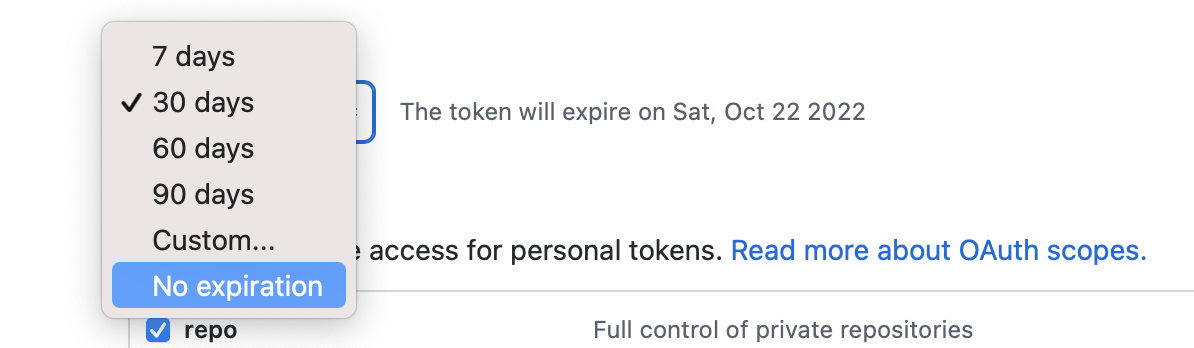
  7. Set the token's expiration date. To avoid issues, we recommend No expiration.
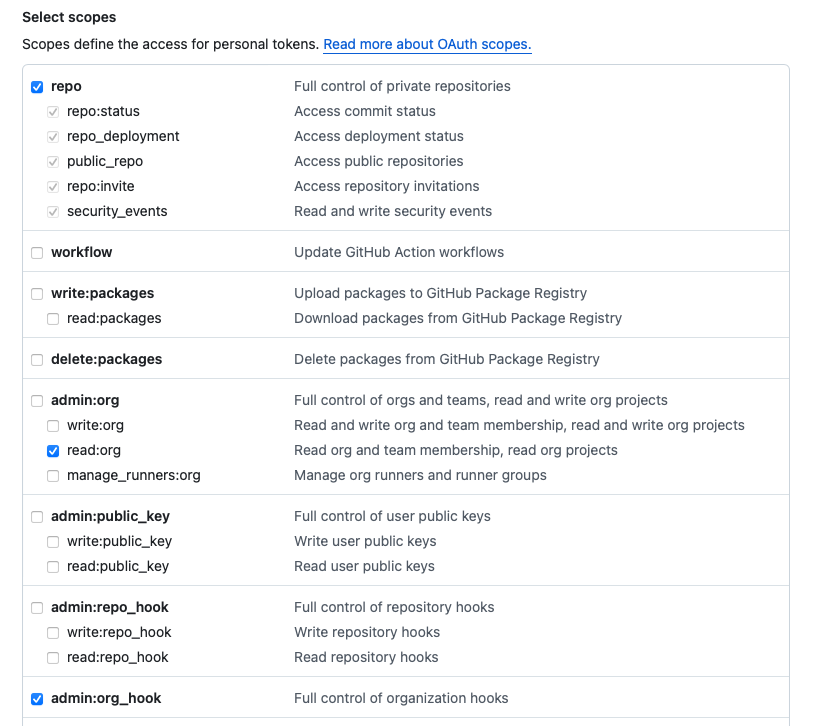
  8. Under Select scopes, select repo (all), read:org (under admin:org), and admin:org_hook.
  9. Click Generate Token.
  10. (Optional) Select the copy icon to copy the token.

  11. To use your token to access resources owned by an organization that uses SAML single sign-on, authorize the token via Configure SSO. For more information, see Authorizing a personal access token for use with SAML single sign-on in the GitHub Enterprise Cloud documentation.
    Important: Store your token in a secure location. Each time you modify a project's SCM integration, you'll need to reenter the token to save your changes.

Next Steps

Use this token to connect to Polaris:

You can also scan on demand (see How to test from the web UI) or schedule automatic testing on a daily or weekly basis (see Test scheduling policies).

Note: From the Tests screen, before beginning a test manually, make sure to test the connection.