 | Dev Portal
GitLab SaaS
How to connect a Polaris project to a repository in GitLab SaaS.
Prerequisites
Create an access token
Authentication between GitLab and Polaris is
managed with an access token that you create in GitLab. If you haven't done
so already, follow the instructions in the GitLab documentation to create an
access token: GitLab Docs > GitLab token
overview.
Important: To use
Event-Based Test Automation in Polaris for SCM Integrations and Synchronizing Polaris with your SCM Provider, the token you use has different
requirements, see GitLab Tokens for SCM Bulk Integration and/or Monitoring.
When creating an access token:
- Select your avatar.
- Select Edit profile.
- On the left sidebar, select Access tokens.
- Select Add new token.
- Set the token's expiration date. We recommend setting a maximum expiration period, to avoid issues.
- Select the role (for Project/Group Access Tokens). Select any role above “Guest”.
- Under Select scopes, select read_repository and read_api.

Important: Store your token in a secure location. Each time you modify a project's SCM integration, you'll need to reenter the token to save your changes.
Connect to a repository in GitLab SaaS
-
Enter the Repository URL.
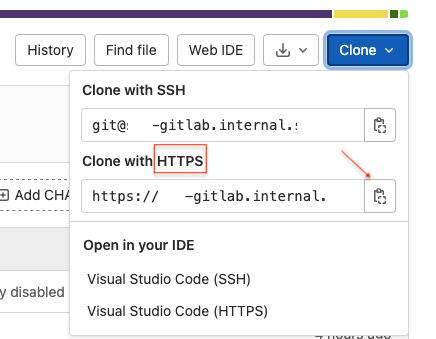
To obtain the repository's URL, open the GitLab repository in a browser and select Clone. Copy the HTTPS URL (SSH is not supported).
Next steps
Now, you can scan on demand (see How to test from the web UI) or schedule automatic testing on a daily or weekly basis (see Test scheduling policies).
Note: From the Tests screen, before beginning a test manually, make sure to test the connection.